N: News Command
N is the Godel Terminal command for viewing real-time and historical news: filterable by source, ticker, language, and keyword.
Because N is central to how most users operate Godel, it has two layers of settings:
- Per-window filters: search query, symbols / watchlist, date range. Local to this one News window.
- Global ("Advanced") filters: sources, categories, languages, keyword includes / excludes, class-action filter. Shared across every News window in your account.
Both layers are combined on every request.
How to use N
Global news:
N: every incoming headline from every source you haven't filtered out.

Scoped to a security:
Security Identifier/Ticker Country/Instrument Asset Class N
Example: AAPL US EQ N: only news tagged with Apple.

Aliases: CN and NH both map to N.
Top Toolbar
Across the top of the window, left → right:
| Control | What it does |
|---|---|
| Search exact term | Full-text search inside the current filter set. Press / when the window is active to focus this input; Enter to search; the 🗑 trash icon next to it clears the query. |
| Watchlist dropdown | Scope results to a specific watchlist, All Watchlists, or No Watchlist. Picking one unlinks any single-ticker scope on this window. |
| Date range | All (default) or Before <date>: pick a cutoff date to read only older news. |
| Clear | Resets per-window filters (search, watchlist, ticker scope, date range) back to defaults. Global filters stay. |
| Pause / Paused | Freezes the incoming feed. The button turns red when paused; click again to resume. New articles keep being fetched in the background but don't render until you unpause. |
| Filter | Opens the advanced filter panel and shows the active global filter count (e.g. "3 Filters"). |

Display Columns
Each row in the feed is one article:
| Column | Description |
|---|---|
| Headline | Article title. Long headlines truncate with ellipsis; hover to see the full text. |
| Date | Publication date (MM/DD/YY). Default sort: most recent first. |
| Time | Publication time (HH:MM:SS). |
| Ticker | Primary tagged ticker, if any. |
| Source | Feed name (e.g. Reuters, Bloomberg). |
Sort state is remembered per window. New arrivals animate in using your global Table animation setting from PDF (Fade / Flip Board / Left Slide / Lightning / Red Alert / No animation).
Breaking news alerts
When a high-impact story hits the tape, Godel surfaces it as a red alert banner in the bottom-right corner of the screen, so you catch market-moving headlines even when you are not looking at the News window. Click the banner to open the article, or dismiss it with the ×.

Reading an Article
Click any row to open the reader on the right side of the window.
- Back (top-left of the reader) returns to the feed.
- Articles are rendered with sanitized HTML: links, inline images, and text are preserved; scripts and iframes are stripped.
- PDF export exports the current article.
- The currently-open article is persisted in the window's props, so reloading the layout reopens it automatically.
On some articles, Godel renders inline context snippets: excerpts showing why the article matched your keyword include filter. Toggle inline context on/off with the Hiding inline context / Showing inline context chip at the bottom of the window (only visible when a search query or a saved include filter is active).
Text-to-Speech (TTS)
Paid users can have new headlines read aloud. The TTS button at the bottom-left of the window turns green when TTS is on, red when off.
- Voice, speed, and which windows read aloud are controlled from the Audio button in the terminal's top-right menu.
- TTS is per window: you can have one News window reading headlines and another staying silent.
- TTS is subscription-only.
Info Panel
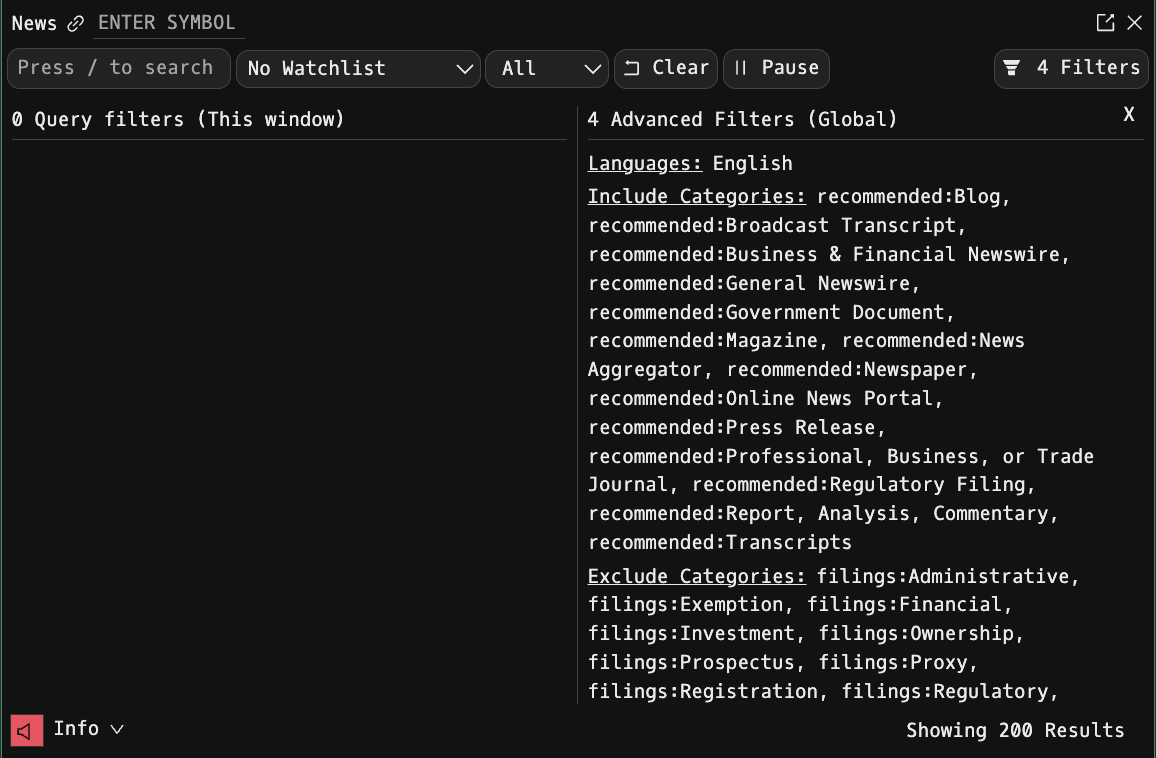
Click Info at the bottom-left to expand a panel that lists every active filter on this window, broken into two groups:
- Query filter (This window): search query, symbols, date range.
- Advanced Filter (Global): sources, categories, languages, includes, excludes, class-action filter.
Each active filter is listed inline so you can audit why a given article is (or isn't) showing up.
Advanced Filters ("Set to Recommended")
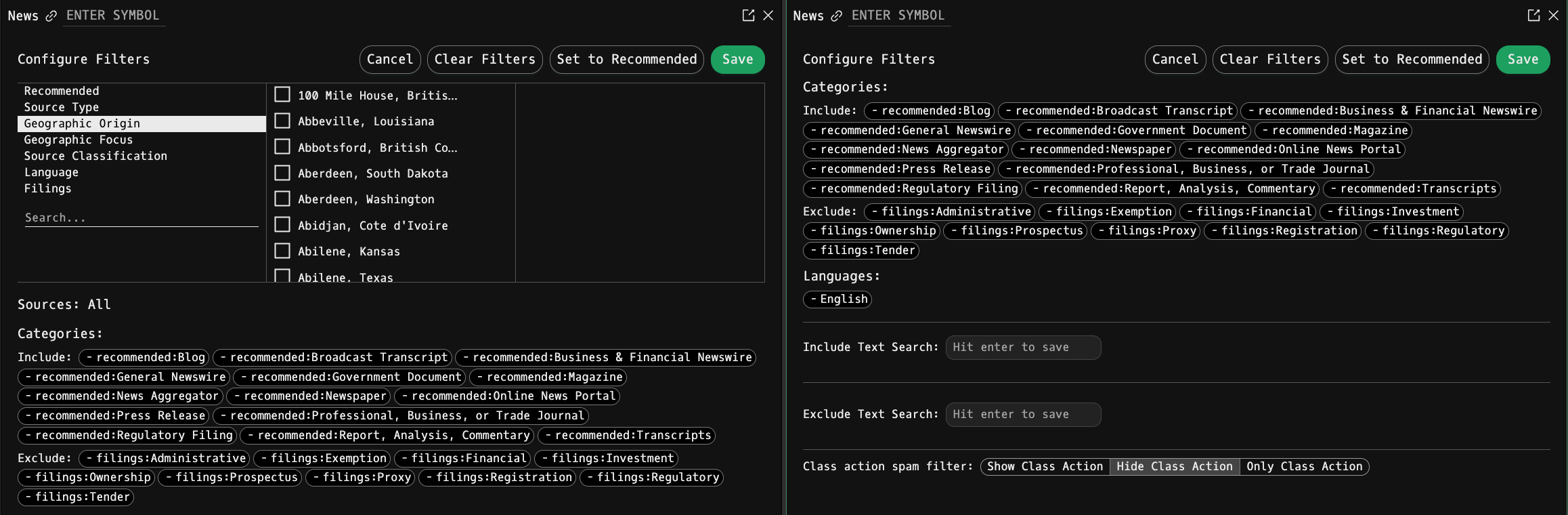
Click Filter in the toolbar to open the full filter configurator. This panel controls your global News settings: they apply to every News window in your account.
The top row has four buttons:
- Set to Recommended: resets every filter to Godel's curated defaults (see below).
- Clear Filters: removes every filter (max noise, nothing filtered out).
- Cancel: discards changes and closes.
- Save: persists the changes to your account.
Filter panel sections
Categories, subcategories & sources (the big 3-column selector)
- Left column: top-level categories (Industry, Region, Language, Topic, Source type, etc.).
- Middle column: subcategories inside the selected category. For each subcategory there's a tri-state checkbox: empty (no filter) → ✓ included → ✗ excluded → back to empty.
- Right column: individual source feeds inside the selected subcategory, with doc counts. Same tri-state: click once to include only that source, click again to exclude it, click again to clear.
Search the left column to jump to a category name; search the right column to fuzzy-match a specific source by name.
Sources summary (below the selector)
A flat view of every source you've explicitly Included or Excluded. Click the X on a chip to remove it.
Categories summary and Languages summary follow the same pattern.
Include Text Search
Add up to 20 keyword strings. An article must match at least one include term to be shown. Hit Enter in the input to save each term.
Exclude Text Search
Add up to 20 keyword strings. Any article containing any of these terms is hidden. Hit Enter to save each term.
Class action spam filter
- Show Class Action (default): class-action litigation press releases are included.
- Hide Class Action: filter them out. Most users will want this on.
- Only Class Action: show only class-action items (rarely used outside litigation research).
What "Set to Recommended" actually does
It resets your globals to Godel's curated defaults: a vetted mix of high-quality sources, typical exclusions, and English-language defaults that balance coverage with signal quality. If you've made a mess of your filters, Set to Recommended is the fastest way to get back to a good baseline.
The exact source list in the recommended defaults ships with the terminal and can change: always prefer clicking the button over attempting to replicate the defaults manually.
Recommended Setup Workflows
Different workflows want different filter shapes. Here's how we'd set N up for common use cases:
1. "I just want breaking market news"
1. Click Set to Recommended. 2. Class action spam filter: Hide Class Action. 3. Languages: include English only (if you're an English reader). 4. Leave sources alone: the recommended set already includes Reuters, Bloomberg, AP, Dow Jones etc. 5. Watchlist: No Watchlist (or your core holdings watchlist if you want it pre-scoped).
2. "News on my watchlist, and nothing else"
1. Open QM and build a tight watchlist of the tickers you actually track. 2. In N, pick that watchlist from the Watchlist dropdown. 3. Keep Set to Recommended as the base; add includes for themes you care about (e.g. earnings, guidance, merger) to highlight them. 4. Turn on TTS if you want push-style headline announcements while you work.
3. "Deep research on one company"
1. TICKER EQ N to scope to the ticker. 2. Date range: Before a specific date to browse older coverage. 3. Use the Search exact term box for precise keyword hits inside that ticker's feed. 4. Open an article → PDF export to save for later.
4. "Thematic / macro tracking"
1. Global N (no ticker, no watchlist). 2. Configure includes for your themes: fed, cpi, opec, tariff, etc. 3. Languages: English + any region-specific languages for geographies you track. 4. Optionally exclude categories you never want (e.g. sports, lifestyle sections from general-news sources). 5. Pause the feed when you step away; unpause to catch up.
5. "Noise floor control" (if too much is showing)
1. Open the filter panel → Excludes list. Add terms that repeatedly clutter your feed (e.g. insider buying, 13f, Class Action Alert, specific wire-service boilerplate you don't want). 2. Set Class action spam filter → Hide Class Action. 3. In the source selector, exclude (red) any wire services or newsletters that routinely produce low-signal-to-noise content in your feed.
6. "Backstop / 2nd News window"
Paid users can open multiple News windows. A common pattern:
- Window A: watchlist-scoped, TTS on, Fade animation, for monitoring.
- Window B: global, wide filters, no TTS, for discovery.
Anonymous and piker users are capped at 2 N windows per screen.
Instance Limits
- Paid users: unlimited News windows across and within screens.
- Anonymous / piker users: up to 2 windows per screen, no hard cap across screens.
Keyboard shortcuts
| Key | Action |
|---|---|
| / | Focus the search input (works when the window is active) |
| Enter | In the search input: run the query |
| Esc | In the search input: clear and reset |
Notes
- News filters split into per-window (search query, symbols, date range, watchlist) and global (sources, categories, languages, includes, excludes, class-action filter). Only the global set persists across new News windows you open.
- Active article state persists in the window: if you close and reopen the layout, the article you were reading is still open.
- Breaking-news banner behavior (red strip across the top of the terminal) is configured in PDF, not here.
- Font size for News windows is controlled globally in PDF under Display Options.