HMS: Historical Multiple Security Command
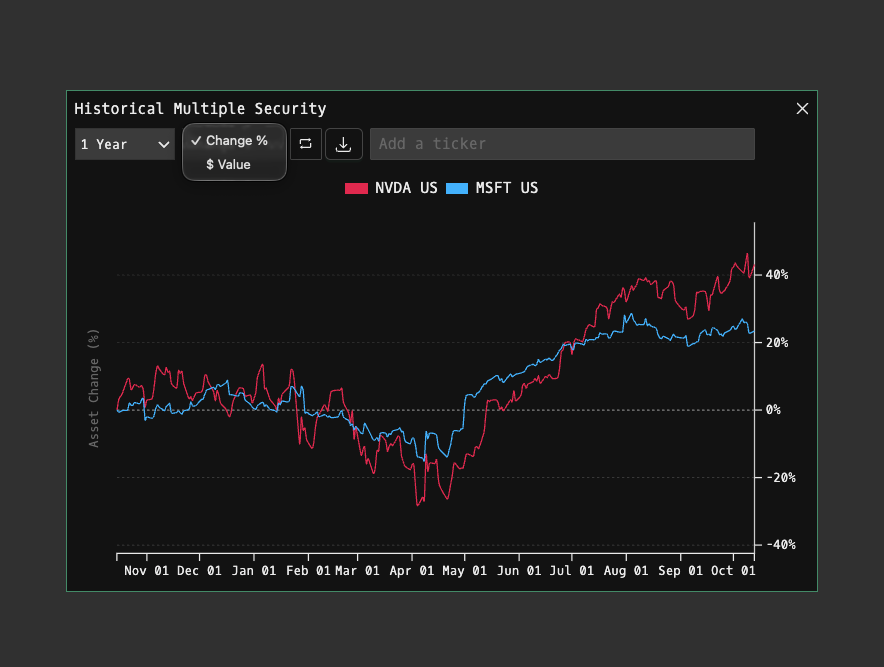
HMS is the Godel Terminal command for comparing multiple securities historically on a single chart: normalize, overlay, or display side-by-side.
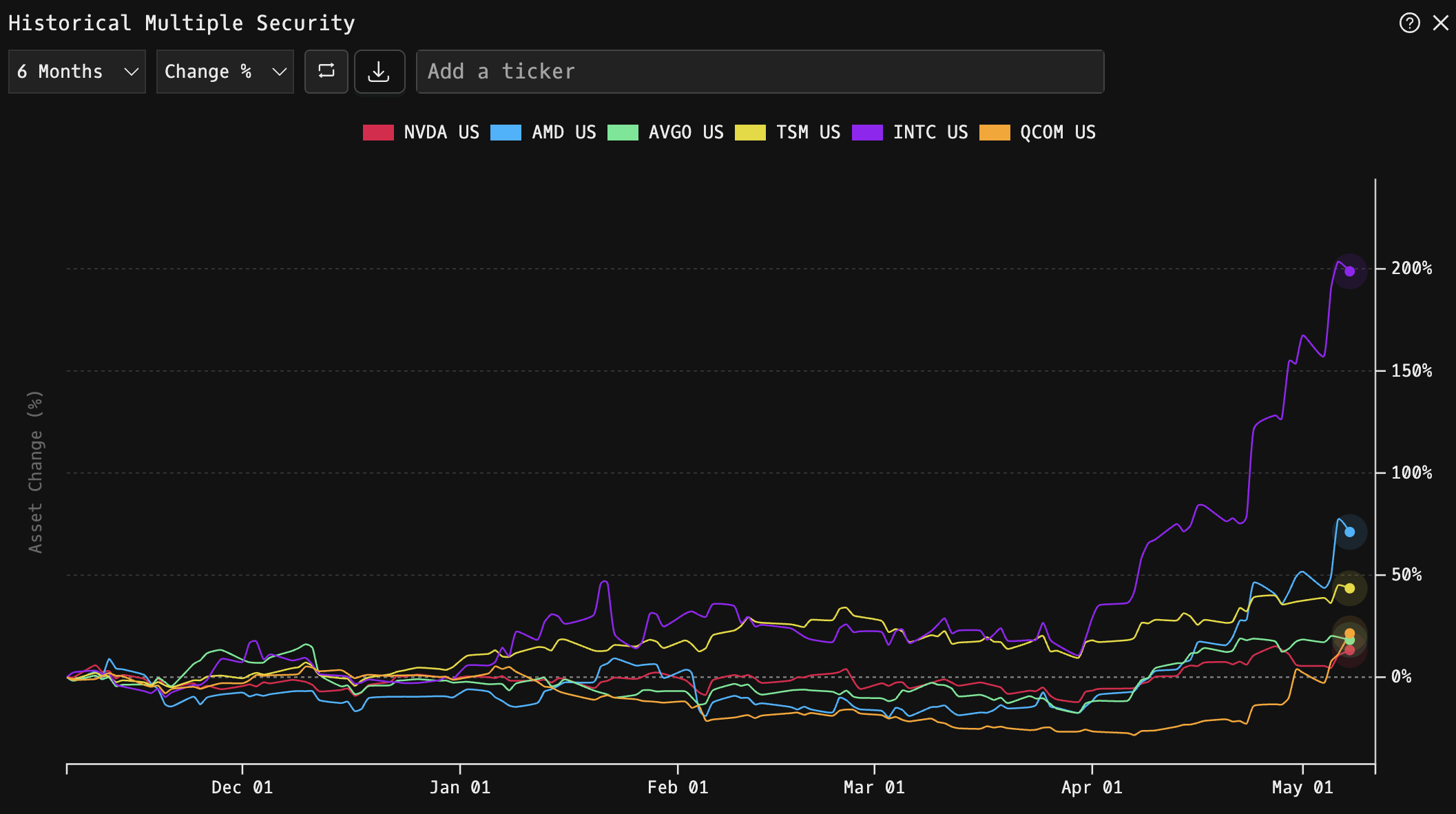
How to use HMS
Command:
HMS

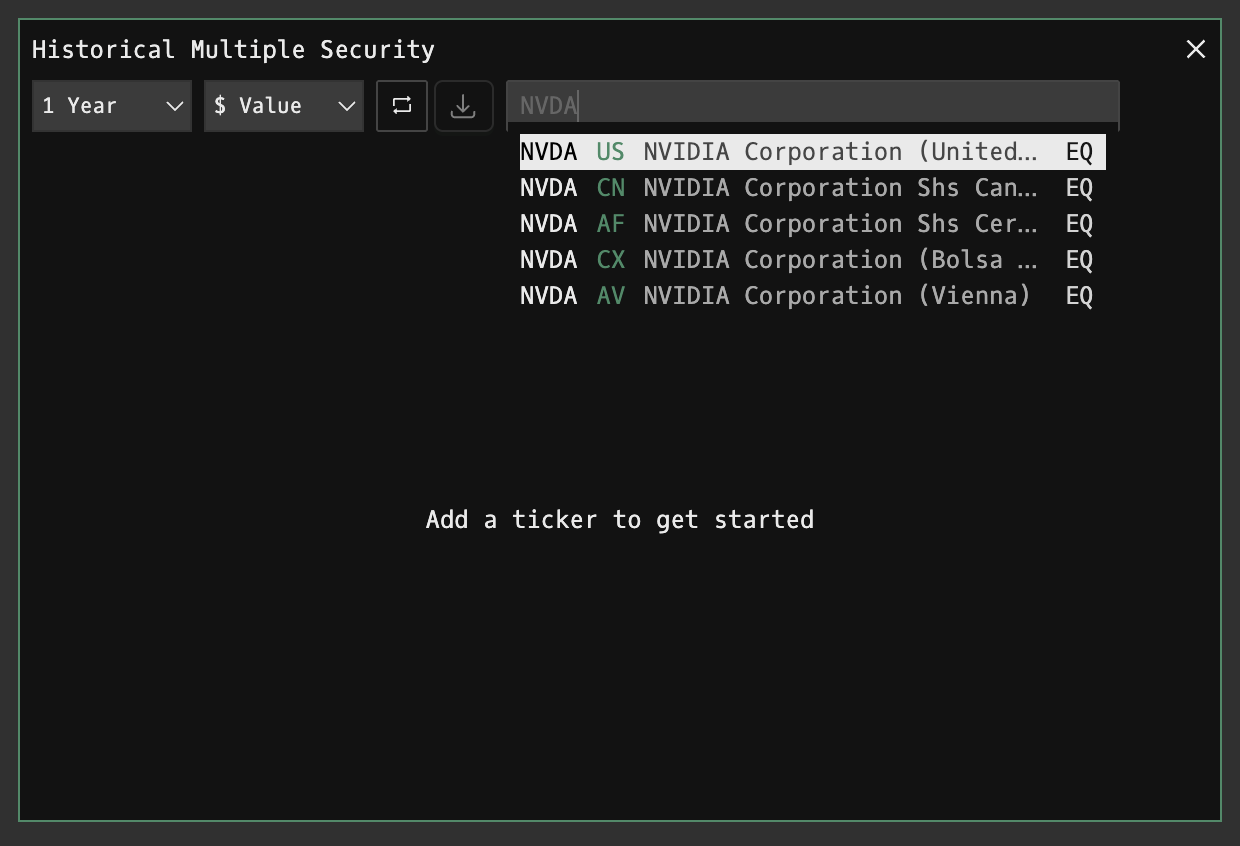
Add tickers
Click into Add a ticker, search a symbol, and press Enter to add.
Remove tickers
Hover the color swatch next to a ticker in the legend and click to remove.
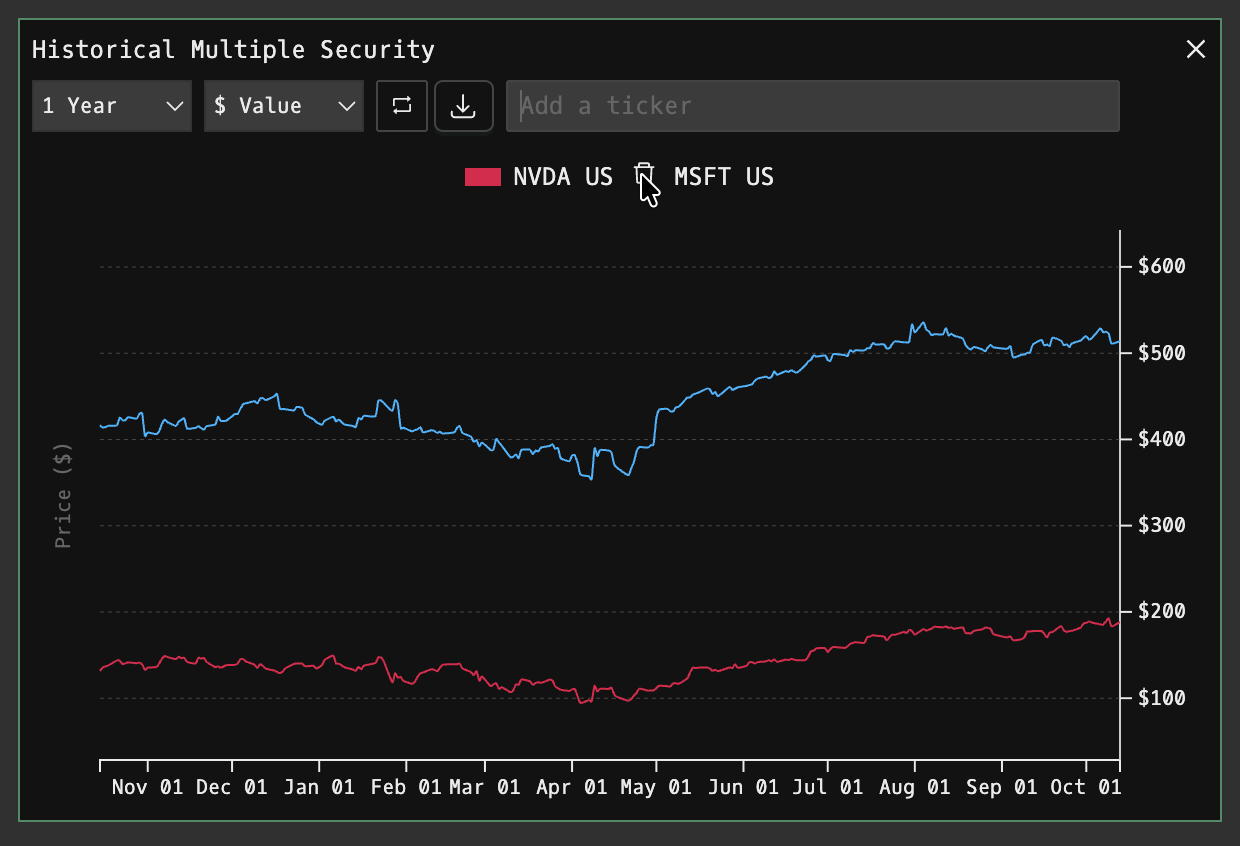
Chart & Controls
Timeframe dropdown
Select from 1 Month, 3 Months, 6 Months, YTD, 1 Year, 5 Years, All Time to change the lookback window.
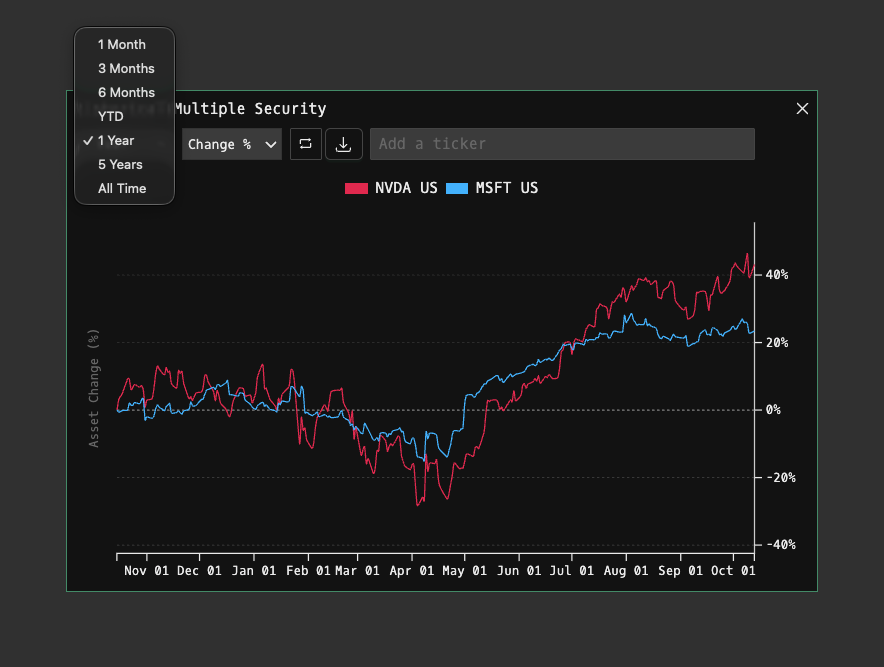
Metric dropdown
Toggle the y-axis between Change % and $ Value. The chart and y-axis relabel automatically.
FAQ
What does HMS do?
HMS is the Godel Terminal historical multiple security command.
How do I open HMS in Godel Terminal?
Type HMS in the terminal, or prefix with a ticker (for example, NVDA US EQ HMS).
Is HMS available on all plans?
Yes, HMS is available on every Godel plan.
Does HMS work for ETFs, indices, or non-US securities?
Yes. HMS works for ETFs, indices, and non-US securities, not just US stocks.